Trade Screen
Data is captured on the following tab(s) of the edit screen: Overview, Competencies, Financial Rates, Attributes and Documents. Below is a list of descriptions for the fields in the sections on each tab.
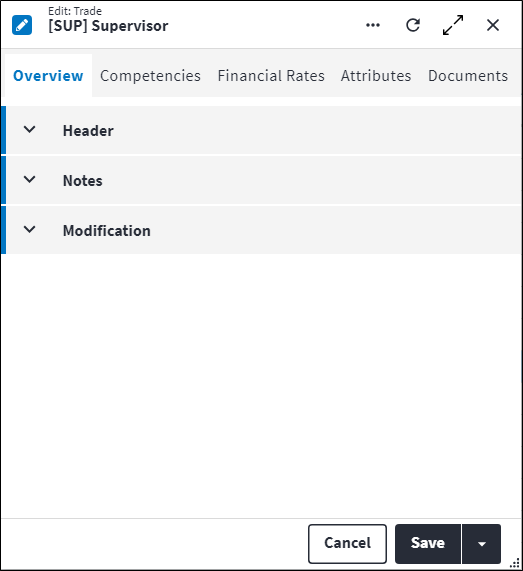
Overview
The Overview tab contains the following section(s):Header
- Code: A unique code used to identify the trade.
- Description: A short description of the trade.
- Sequence Number: The sequence in which the records are listed. Use the sequence number to list the records in a logical sequence.
- Is Active: Ticked if the record is active and available in lookup lists.
- Permission Tree: A field linked to a permission record in a permission tree, that determines whether a user has rights to access records and/or make changes to records. This is assigned by the system where possible.
- Default Rate: The default financial rate for this trade.
Notes
Add additional details, comments or other relevant information.Modification
Displays details of when the record was created and last updated. This section is autopopulated and requires no user input.Trade Competencies
A trade represents a specific skillset that is used to classify resources. It determines the types of jobs the resource can be used for. Trades are assigned to resources based on the skills they possess, as well as their competency levels.
Competencies can be specially configured for a trade by selecting Trade Specific on the global competency. The purpose of trade competencies is to provide the user with a view of the competencies associated with the trade when setting up a resource. Additionally, when defining the resources required on a task level, the user also has a view of the competencies related to the selected trade.
Only competencies configured to be trade specific can be linked to a trade. These fields are required:
- Competency Code: A unique code that identifies the competency, for example
WEL. - Permission Tree: A field linked to a permission record in a permission tree, that determines whether a user has rights to access records and/or make changes to records. This is assigned by the system where possible.
- Proficiency: The level at which this trade can perform this competency. The Proficiency level ranges from
1to9.
Refer to Competencies for more information.
Trade Financial Rates
Custom financial rates can be defined for each trade.
The reason for this is that all resource types are managed in the same table. The normal time rates and overtime rates for a staff member, for instance, may not apply to a special resource. Certain trades may also have a number of different rates related to the resource type. The user therefore requires the ability to configure custom financial rates.
Click  in the toolbar to add financial rates directly to a trade. These fields are required:
- Amount: The actual value of the financial rate, for example
100. - Description: A short description of the financial rate, for example
NormalorOvertime. - Permission Tree: A field linked to a permission record in a permission tree, that determines whether a user has rights to access records and/or make changes to records. This is assigned by the system where possible.
- Currency: The currency used for costing transactions for this trade, for example
ZARorUSD. - Unit Of Measurement: The unit for the financial rate, for example
hoursorkilometres.
Trade Documents
The purpose of the document linking functionality is to link a document record that has been added to the On Key document library to one or many entities. An example of this could be an instruction manual of how to repair an asset type. This instruction manual can be created as a document record and then linked to a specific asset type. Upon syncing, the instruction manual will be inherited to the child assets, asset components and asset component placeholders when set and linked.
Information regarding linked documents, including the file location, file name, file size and file type, is displayed. For work order documents and work order task documents, Is Copied Document Link also indicates whether the document link was copied from the relevant regular asset type task or regular asset task.
Refer to Document Linking for more information.
Assist custom actions
The following custom actions are available in the Assist panel in the sidebar. Keep in mind that some of these custom actions are only available from the edit screen, while others are available from both the dashboard and edit screen.- Set Active / Set Inactive: Refer to Set Items to Active or Inactive.
- Change Permission Tree: Refer to Change Item's Permission Tree.
- Add to Compare: Refer to Add Items for Comparison.
- Cross References: Refer to Perform Cross References.
- View Changelog: Refer to View Changelog.